


Evernote - Note Organizer
3.5197.31K Reviews
App Specs
- Version
- 11.31.7
- Updated On
- License
- Free
- Downloads
- 100,000,000+
- Developer
- Evernote by Bending Spoons
- Categories
- Productivity
- Platform
- Android, iOS
Screenshots
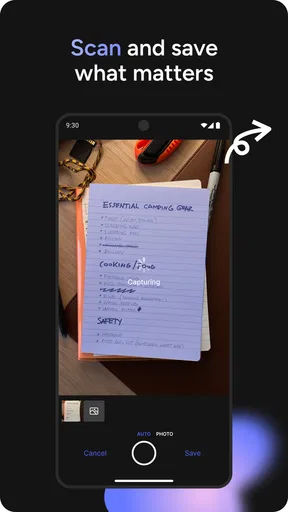
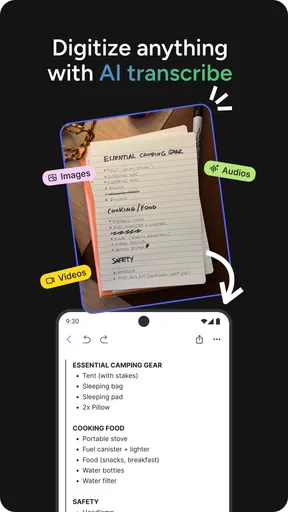

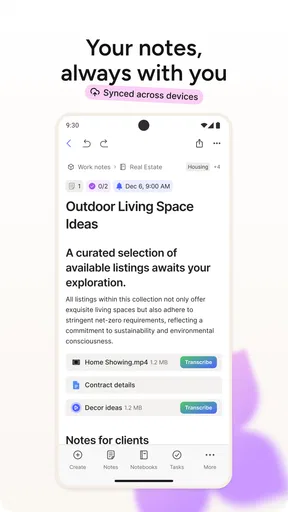
 Analysis by AppCompare
When I judge a note-taking app, I look beyond how quickly I can type a reminder. I want to know whether I can read it comfortably, find it again when I’m in a hurry, and keep using it across different situations. Evernote - Note Organizer is built to gather notes, tasks and reference material in one place, and its breadth can be useful—but it also asks you to make some choices about how much structure you really need.
Finding a comfortable way to read and navigate
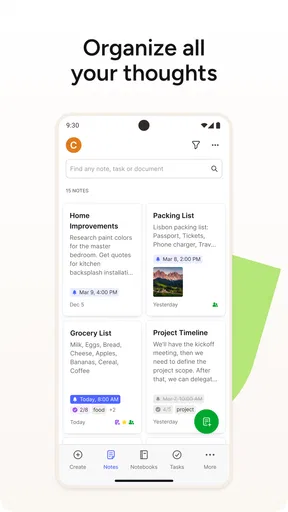
My first impression of the interface was that it felt orderly rather than playful. That suits an app which may hold everything from a grocery list to work notes, but a tidy screen is only helpful if your own filing habits stay tidy too. Notebooks provide broad containers, while tags let one note belong to more than one subject. I’d start with a small number of notebooks and add tags only when I have a genuine reason to retrieve something across categories.
That distinction matters in practice. A saved article about a kitchen repair might belong in a home notebook, but a tag such as “to research” could also bring it up alongside unrelated reading. The trade-off is that tags require a little consistency: if I label similar notes in several different ways, the flexibility becomes clutter. For someone who prefers a short, fixed list of folders, a simpler notes app may feel more natural.
Evernote is a productivity app from Evernote by Bending Spoons. It is free to download, has an Everyone age rating, and includes in-app purchases priced from around one dollar to about 255 dollars per item. Its current version is 11.4.2, and it supports Android 9 or later. Those details matter if you’re deciding whether it fits an older phone or if you want to begin without paying, but I would still check the purchase options in the app before building a workflow around a paid feature.
Making notes work for different hands and senses
I like having more than one way to capture information. Typing is the obvious choice, but audio recording can help when I’m listening rather than looking at the screen, and handwritten notes are useful when a stylus feels quicker than a keyboard. Images can preserve a visual reference that would be awkward to describe in words. These options make the app less dependent on one style of input, though they don’t mean every task is equally comfortable for every person.
For a meeting, I might type decisions and action items, then record a short audio note to retain context I don’t want to interrupt the discussion to capture. That can be handy, but it also creates a note I need to revisit and organize later. If I’m in a quiet place and need a precise, searchable record, typed notes are easier to scan. If I’m trying to capture a quick thought while moving, audio may be more practical. Choosing the right method is part of keeping the notebook useful rather than treating every capture option as something I must use.
There is a similar choice with handwriting. A stylus can make a quick diagram or rough plan feel direct, while typed text is usually easier for me to edit and arrange later. I’d use handwriting for the shape of an idea, not automatically for information I expect to search or reuse. That small distinction can save time when a note grows beyond its original purpose.
Worth Reading Before You Choose

Flipboard Shows What News Apps Must Do Beyond the Feed

Switching to Android Auto Means Rethinking Your Driving Routine

Google Calendar Makes a Crowded Week Easier to Manage

Ludo King Makes the Most of the Minutes Between Plans

Baby Panda World Brings Quick Play to Modern Phones, but Its Game Library Feels Busy

ESPN’s Live Game View Makes Following Close Games Easier
Using it when the day does not go to plan
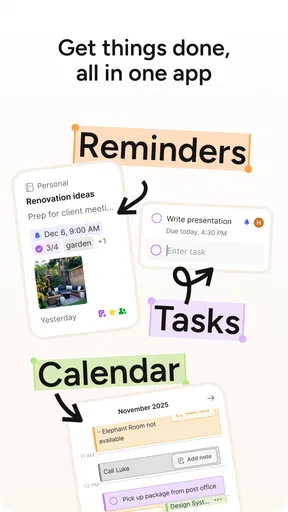
A useful test is not whether an app looks organized at a desk, but whether it helps when I have only a moment. Imagine I’m on my way home, remember two things to buy, and also spot an article I want to read later. I can put the shopping items into a checklist and save the article separately, then sort both more carefully when I have time. The benefit is keeping those different kinds of information in one familiar place; the risk is letting quick captures pile up without a review habit.
For that reason, I’d make one recurring routine part of using Evernote: spend a few minutes reviewing recent notes, adding a notebook or tag where it will genuinely help, and turning any next step into a checklist item. This is more useful than trying to design a perfect filing system at the start. It also makes the app easier to return to after a busy week, because I can clean up a small backlog instead of facing a maze of categories.
The web clipper is especially valuable for people who collect research. Rather than saving a string of browser bookmarks with vague titles, I can keep an article beside my own comments or related notes. The practical tip is to add a short note explaining why I saved the page; a clipped reference without context can be just as easy to forget as an open tab. I wouldn’t use clipping as a substitute for deciding what deserves to be kept, though. If I save everything, search results become another kind of inbox.
Where it fits among other note-taking choices
Compared with a basic phone notepad, Evernote gives me more room to combine formatted writing, checklists, images, audio and organized reference material. A simple notes app may be faster when I only need a few short reminders and don’t want to think about notebooks or tags. Evernote makes more sense when a note is likely to connect to other information or when I want a personal archive that I can search and revisit.
It also sits between a lightweight notes tool and a full project-management system. Checklists can help me remember steps, but I wouldn’t choose this app solely to coordinate a complicated team project with dependencies and assigned work. For that, a dedicated task or project tool may make responsibilities clearer. If my work revolves around long-form documents, shared editing or tightly controlled workflows, I would compare those needs directly rather than assuming a broad note-taking app will cover them all.
The choice is also about attention. A flexible workspace can reduce the number of places where I store information, but it can tempt me to keep refining categories instead of doing the work. I’d recommend it to students collecting class notes and reading, freelancers keeping client references, and people who routinely move between a phone and other devices. I’d suggest a simpler alternative to someone who wants only a private scratchpad, or who finds nested organization and feature-rich editors distracting.
What to consider before relying on it
Evernote has a 3.5 average rating from around 1.9 million ratings, with about 198,000 written reviews and over 100 million installs. That shows it is widely used, but popularity does not settle whether its approach will suit me. The more useful question is whether I will actually maintain the system I create. If I only need occasional lists, the setup and breadth may feel like extra work; if I keep a growing body of notes, those organizational options can earn their place.
It is free to start, while in-app purchases range from around one dollar to about 255 dollars per item. I would check the current plan details before depending on capabilities tied to a paid option. The distinction matters especially if offline access or document-related tools are essential to my routine. I would test the free experience with ordinary notes first, then decide whether a paid feature solves a real problem rather than upgrading just because it is available.
For access away from a reliable connection, it is worth thinking ahead. The original review describes offline notebook access as a premium feature, so I would not assume every note will be available without internet. Before a flight, commute through a weak-signal area, or a day of field work, I’d confirm that the material I need is accessible under my plan. That simple check is more dependable than discovering a connection limitation at the moment I need a reference.
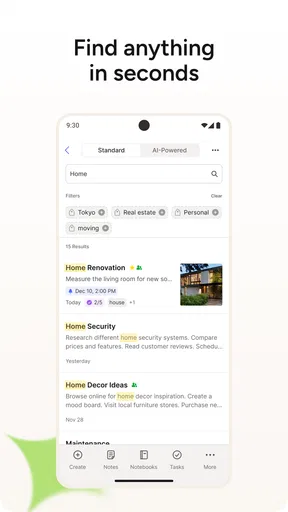
Likewise, I’d treat search as a retrieval aid, not a replacement for clear note titles. A title such as “Project meeting” may be hard to distinguish months later; adding the subject or date in ordinary words makes scanning easier even before I search. If a PDF or Office document is central to my work, the advanced search described for paid use may be relevant, but I’d test that workflow with my own documents before making it a reason to subscribe.
Getting Started with Evernote
First things first, downloading and installing the app was a breeze. Available on both Android and iOS, Evernote is ready to go with just a few taps. Once you open it up, you're greeted with a clean and user-friendly interface. It kind of feels like walking into a well-organized library – everything is in its place, and you’re ready to explore.
Setting up an account is simple. You can either sign up with your email or use a Google account. I went with my Google account because, let’s face it, who can remember another password these days?
Features That Stand Out
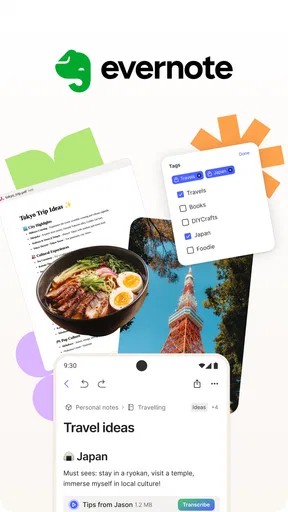
One of the first things I noticed is how versatile the app is. You can create notes, to-do lists, and even attach multimedia files like audio recordings and images. It's like having a Swiss Army knife of note-taking right in your pocket.
Evernote also offers a web clipper feature, which is a game-changer if you’re someone who likes to save articles or web pages for later. With just a click, you can clip anything from the web, and it’s saved right into your notes. No more endless bookmarks or forgotten tabs.
Organization and Syncing
Organization is where Evernote - Note Organizer truly shines. You can create notebooks to categorize your notes, which makes finding that recipe you saved last month a piece of cake. Tags are also available for more flexible organization, allowing you to sort notes in multiple ways.
Now, let’s talk about syncing. Evernote syncs across all your devices. I tested this by creating a note on my phone, and it was instantly available on my tablet and laptop. This seamless experience is perfect for those of us who switch between devices throughout the day.
Note-Taking Experience
Taking notes in Evernote is a pleasure. The text editor is intuitive and offers various formatting options, from bullet points to checklists. You can even add tables, which is a neat feature if you're organizing data.
For those who prefer to dictate notes, the audio recording function works like a charm. I found it particularly useful during meetings or when my hands were too busy to type. The app also supports handwritten notes, which can be a lifesaver if you like jotting things down with a stylus.
Premium Features
While the free version of Evernote is pretty robust, there are additional features available in the premium version. For instance, you get more storage, offline access to notebooks, and the ability to annotate PDFs. If you’re a heavy user, it might be worth considering.
The premium version also offers advanced search capabilities, which include searching for text in PDFs and Office documents. This can be incredibly useful for professionals who deal with a lot of documents.
Final Thoughts
Overall, Evernote - Note Organizer is a powerhouse for anyone looking to streamline their note-taking and organizing process. Its versatility, ease of use, and seamless syncing make it a standout choice.
Whether you’re a student, a professional, or just someone who loves staying organized, this app offers the tools you need to keep everything in check. So, if you haven’t tried it yet, give it a shot. You might just find it becoming your go-to app for all things note-related. Happy organizing!
An inclusive fit, with practical limits
My inclusive verdict is positive but not absolute: this app gives people several ways to capture information and can support different routines, yet a wide feature set does not automatically make every screen or workflow comfortable. If reading small amounts at a time is easier, I’d keep notes brief and use descriptive headings inside them. If precise tapping is difficult, I’d favor a deliberate notebook structure over relying on tiny, frequent tag edits while rushing.
For sensory comfort, I’d choose the capture method that matches the environment. Audio is not a good choice in a quiet shared room or where recording would be inappropriate; a short typed checklist may be better there. Conversely, when looking at a screen is inconvenient, capturing a thought by voice may help, provided the setting allows it and I can organize it afterward. The app’s flexibility is most useful when I make these choices intentionally, rather than expecting one interaction style to work everywhere.
People who need a specific accessibility accommodation should try the exact tasks they rely on before moving important records into any app. I’d test reading a longer note, editing a checklist, finding an older item, and switching between devices. That gives a more honest answer than judging usability from the welcome screen alone. Evernote is worth considering if its mix of formats and organization matches your habits; if you need a very minimal interface or a specialized accessibility workflow, another tool may be the safer fit.
Pros
- Seamlessly syncs across multiple devices.
- Robust search feature for quick access.
- Supports attachments like PDFs and images.
- Customizable tags for better organization.
- Collaborative features for team projects.
Cons
- Free version has limited storage space.
- Advanced features require a premium plan.
- Interface can feel cluttered at times.
- Offline access is limited without premium.
- Occasional sync issues reported by users.
FAQs for Evernote - Note Organizer
What platforms is Evernote available on?
Evernote is available on multiple platforms, including Android, iOS, Windows, and macOS. This cross-platform compatibility allows users to access their notes from any device, ensuring seamless synchronization. Additionally, Evernote can be accessed via a web browser, making it even more versatile and easy to use wherever you are.
Is Evernote free to use, and what are the limitations of the free version?
Evernote offers a free version with basic features such as note-taking, basic formatting, and synchronization across two devices. However, the free version has limitations, like a monthly upload limit of 60MB and the inability to access notes offline. Premium features are available with a subscription, enhancing functionality and storage.
How secure is my data in Evernote?
Evernote uses industry-standard encryption to protect your data both in transit and at rest. However, it’s important to note that Evernote employees can access your notes under certain circumstances, such as to troubleshoot issues. For added security, Evernote Premium users can encrypt specific text within notes. Always review Evernote's privacy policy for detailed information.
Can I collaborate with others using Evernote?
Yes, Evernote supports collaboration by allowing users to share notes and notebooks with others. This feature can be useful for team projects, allowing multiple users to view and edit shared content. However, more advanced collaboration tools, like note history and priority support, are available in the Premium and Business plans.
What types of content can I add to my notes in Evernote?
Evernote allows you to add various types of content to your notes, including text, images, audio recordings, and attachments like PDFs and Microsoft Office documents. This flexibility makes Evernote a versatile tool for collecting and organizing different types of information, catering to personal, educational, or business needs.


